How do I run my first analysis?
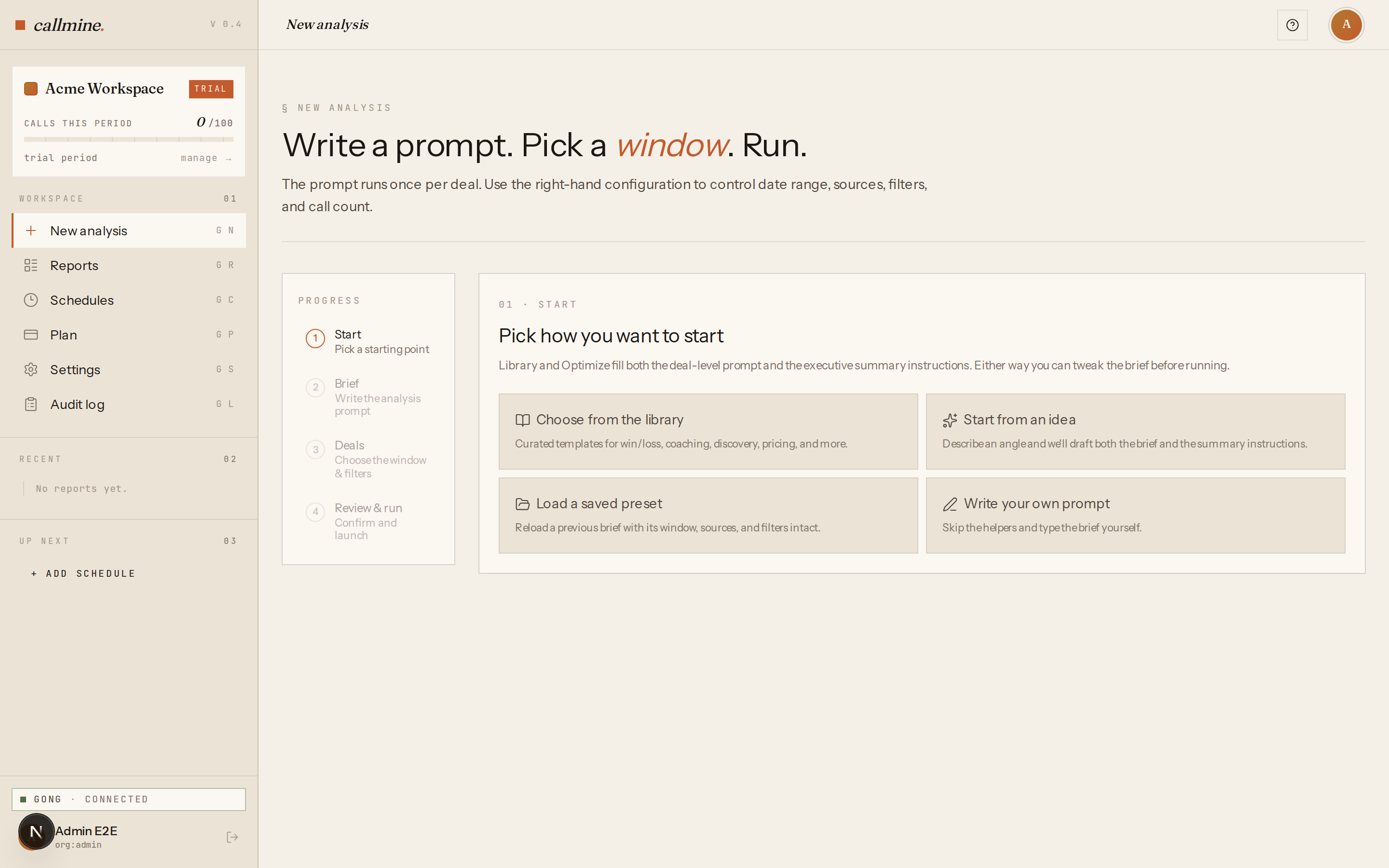
Run your first Callmine analysis in five steps: open /new, pick or write a prompt, set max calls and date range, click Run, watch results.
TL;DR
Open /new, choose a prompt (library or your own), set max_calls
(default 10 for first runs) and a date range (default last week), click
Run, then watch the live progress at /runs/<jobId> and read the final
report at /reports/<reportId>.
Steps
- 01Open
/new. Callmine shows a start-mode chooser: Choose from the library or Write your own prompt. Pick one. - 02If you chose the library, pick a prompt — Callmine ships a curated catalog with categories like closed-lost analysis, objection patterns, and competitive intel. The prompt and a suggested executive summary directive populate automatically.
- 03If you chose your own, write a deal-level prompt in plain English — one question Callmine should answer for every call in scope. Optionally add an executive summary directive to focus the roll-up.
- 04Set the run scope:
max_calls(start with 10 for your first run), a date range (last week is the common default), and any HubSpot or Gong filters you want to narrow on. - 05Click Run. Callmine queues the analysis and redirects you to
/runs/<jobId>, which streams progress with a heartbeat — Gong fetch, transcript pull, per-call analysis, executive summary, completion. When it finishes, the report opens at/reports/<reportId>.
What happens during a run
Callmine fetches the calls matching your date range and filters from Gong, pulls each transcript, and runs your prompt against every call in parallel. The per-call findings feed into an executive summary that roll-ups themes, counts, and outliers across the whole batch. The finished report renders the executive summary, per-call detail, and a JSON payload you can download.
After the first run
If results look right, save the configuration as a preset from the
report page — presets store the full prompt plus filter set, so future
weeks reuse the same setup. To run the same prompt on a schedule, open
/schedules and create a daily, weekly, or weekdays job. To share
findings with the team, wire up Slack so completed runs post a
notification automatically.